Friday, January 2, 2015

Install leaked Lollipop Framework

Android 5.0 "Lollipop" has only existed for a few months, but a leaked version of Samsung's take on the firmware has already been spotted in the wild. This update came straight from Samsung, and brings with it a plethora of new features, including greatly improved performance and a revamped TouchWiz UI.
Before you decide whether or not you'd like to install this new firmware, note that it will only work on the LTE Variant of the N9005 model. For the most part, this means that only devices purchased in North America are compatible, and only those with LTE connectivity. And as a rule of thumb, Verizon Wireless and AT&T phones are not eligible to sideload updates, since both of these carriers like to tamper with the stock firmware on their Android devices.
You should also know that this procedure will wipe all of the data on your device. If you have any important files stored on your Samsung Galaxy Note 3, make sure they're all backed up before proceeding.

Requirements

  • N9005 Galaxy Note 3 (LTE variant only)
  • Windows PC
  • USB data cable

Step 1: Download Necessary Files

To get started, there are a few files that you'll need to download to your Windows PC.
First, grab the Samsung USB drivers from this link. Once downloaded, just open the file and follow the prompts to install the drivers.
After that, grab a copy of Minimal ADB and Fastboot from this link. This tool will be used to back up an essential file on your Note 3, so run the installer and follow the prompts to get it installed.
Next, you'll need to download Odin, which is software for Windows that allows you to install firmware on a Samsung device. You can find Odin at this link, and once you have it downloaded, extract the two files in the ZIP to a folder that you can access easily.
Finally, it's time to grab a copy of the leaked firmware itself. The file is rather large at 1.1GB, so make sure you have room on your hard drive, then click this link to save it to your PC.

Step 2: Enable USB Debugging on Your Note 3

In order to back up one essential file, you'll need to enable "USB debugging" on your Note 3. From the main Settings menu, head to the "General" tab, then find the "Developer options" menu and tick the box next to "USB debugging."
If the Developer options menu is not present, head to "About device," then tap the "Build number" entry 7 times to unlock it.

Step 3: Back Up Your Old PIT File

Next, plug your Note 3 into your PC using a good quality USB data cable. At this point, you should see a dialog box on your phone asking if you'd like to allow this computer to connect to your phone. Tick the box next to "Always allow from this computer", then press "OK."
Back on the PC, open the Minimal ADB and Fastboot program that you installed earlier. In the command prompt window, type the following two commands (each followed by the enter key):
  • db shell su -c "dd if=/dev/block/mmcblk0 of=/sdcard/My-N9005.pit bs=1 skip=17408 count=4244"
  • adb pull /sdcard/My-N9005.pit
This will make a copy of the PIT file and store it on your PC in the C:\Program Files (x86)\Minimal ADB and Fastboot folder.

Step 4: Extract the Contents of the Leaked Firmware File

Next up, find the N9005XXUGBNL8 5.0.7z firmware file that you downloaded in Step 1. Extract the contents of this file into a folder that you can access easily.
At this point, you should be left with a series of files ending with the extension MD5.

Step 5: Put Your Phone into Download Mode

You'll be using Odin to install the files you just extracted. For Odin to be able to access the system partitions of your device, you'll need to put your phone into Download Mode.
Start by powering your phone completely off. When the screen goes black, press and hold the home, volume down, and power buttons simultaneously. After a few seconds, a warning message will appear, but like it says, press the volume up key to confirm your choice.
When you have successfully entered Download Mode, plug your phone into your PC with a good quality USB cable.

Step 6: Load the Firmware Files in Odin

Back over on your PC, locate the Odin3 v3.09.exe file that you extracted from the ZIP in Step 1. From here, right-click it, then select "Run as administrator."
Next, wait until Odin has connected to your Note 3. It may take a few minutes, but you'll know when it's ready when the "ID:COM" box turns light blue and displays a COM port number.
After that, click the "AP" button towards the middle of the Odin window.
Next, navigate to the folder with the extracted firmware files. Locate the MD5 file that starts with the letters "AP," then select it and click open.
Wait for a minute or two until Odin has successfully loaded this file. When it has, the readout in the bottom-left corner will say "Leave CS" and the AP box will have a check mark next to it.
After that, repeat this same process for the "BL," "CP," and "CSC" buttons and their associated MD5 files. When you're finished, all four buttons should have check marks next to them.

Step 7: Flash the Firmware

This next part will be a little different depending on whether you have the 16GB version of the Note 3 or the 32GB version. With the 32GB version, make sure that the "Auto Reboot," "Re-Partition," and "F. Reset Time" boxes in Odin are all ticked.
If you have the 16GB version, make sure that only the "Auto Reboot" and "F.Reset Time" boxes are ticked—do not tick the "Re-Partition" box.
When you're ready, click the "Start" button near the bottom of the window to install the firmware. The process will take 5-10 minutes and your phone will automatically reboot when it's finished.
If you have the 16GB version, you'll have to perform a factory reset after the firmware has been installed. Boot into recovery mode by pressing the volume up, home, and power buttons simultaneously from a powered-off state, then choose the "Factory Reset" option.
With all of that taken care of, your Note 3 will be running Android 5.0 "Lollipop" now. What are some of the biggest improvements with this new firmware, in your opinion? Let us know in the comment section below, or drop us a line on Facebook, Google+, or Twitter.

HTC one M8 Root

Just short of a week after its release, the new HTC One has been rooted thanks to Android devs beaups and jcase, the same guys that brought us S-OFF for the original HTC One (M7).
Their exploit, dubbed WeakSauce, gains root, and mounts a new xbin partition containing busybox as well as superuser. While the method was designed for the Verizon variant of the M8, the devs state that it should work for all variants. Although some are reporting that International variants are not playing nice with this method, that's about the worst that can happen—you may not be rooted, but you certainly won't brick your device.


We'll have a full guide for you guys shortly, but until then, check out the instructions below.

How to Root

Making sure you have "Unknown sources" enabled in your Security settings, grab the file for WeakSauce (app mirror), unzip it, and run the app. After it does its thing, head to Google Play and install Chainfire's SuperSU.
Now simply reboot your device and you're rooted! Nice and easy.

What This Method Doesn't Do

Remember, this method re-roots the device on every boot (no permanent root until the M8 gets S-OFF), so give your device about 30 seconds on each boot for the exploit to do its thing.
Because your device doesn't maintain root permanence, using Xposed Framework is somewhat buggy at the moment. The only method of Installing Xposed is to rely on "soft reboots" within the app itself. Meaning, if you install Xposed, update the framework, or activate any modules, make sure to select "soft reboot" from the app's reboot menu.

How to Unroot

As easy as this rooting method is, it's even easier to unroot. Simply uninstall WeakSauce, uninstall SuperSU, and reboot.

How to Update Root

As the method and process are new, we'll probably be seeing quite a few updates from the devs. To update, simple uninstall the two apps just like you would to unroot, then reinstall them after rebooting.


Hacks Mod's & Root's

Friday, December 26, 2014

Android Lollipop Phone Dialer Theme

Make Your Phone's Dialer Look Like Android Lollipop's

Google's latest mobile operating system, Android 5.0 Lollipop, is coming out very soon for Nexus devices, but it will be some time before any other devices get to experience it. However, there are other ways to get the Lollipop feel on non-Nexus devices right now.
Unlike the Lollipop calculator, keyboard, and lock screen, not all of the new apps have been ported for use on non-Lollipop devices.
Developer Jared Ikorolkov has created a theme for a popular third-party dialer app that showcases the beauty of Google's new Material Design language. Today, I'll be showing you how to apply his Lollipop theme to offer you a taste of what's to come.

What You'll Need

You'll need to install two apps from the Google Play Store to get everything set up—the ExDialer - Dialer & Contacts app from developer Modoohut, and the ExDialer Theme Android L app.
ExDialer comes with a free seven-day trial, but after the week is up, you'll only need to deal with a daily popup. The full version shows no ads and can be acquired through an in-app purchase or on the Play Store for $3.99.

Setting Up ExDialer

Open your newly installed ExDialer app and enter the preferences. Tap on Theme, then select Android L. You now have the theme, but additional tweaks need to be made to the dialer and its size.
From within the preferences again, enter Appearance. At the bottom of the page, disable Display ABC and ABC at Right. Next, adjust the Dialpad Size to have the Width 1.00x and the height anything above 1.35x and 1.45x (these sizes reflect the screen size of the Galaxy S4, so you may need to play around with these settings for other devices).

Setting Up the Android L-Themed Dialer

The dialer is fully functional with a contacts list that is also Lollipop-themed.
This is a great, easy way to see what the new version of Android could look like on your device. If you end up not digging it, or just prefer your stock dialer, simply uninstall these apps like you would any other.
 

Hacks Mod's & Root's

Thursday, December 25, 2014

Nexus 7 Root

How to Root Your Nexus 7 Tablet Running Android 4.4 KitKat (Windows Guide)


Whether you have the original Nexus 7, or the 2013 Nexus 7 tablet, rooting it will give you access to tomorrow's features, today.
Sure, without root there's lots you can use it for. It's helped me get out of bed, became my own personal bartender, and a lot more.
But with a rooted Nexus 7, you can install and use special features like KitKat's immersive mode, add extra swipe gestures, set separate home and lock screen wallpapers, and other cool Xposed Framework mods to personalize and automate your life.
Rooting may sound like a tricky procedure, but it's really not. Thanks to an awesome root-kit made specifically for all Nexus devices (including both the 2012 and 2013 Nexus 7), the process for rooting is virtually painless.
Update: There's a new root method available, and it's the easiest one yet. No need for USB cables, computers, drivers, or toolkits. Simply download an app, run it, and you're root 30 seconds later. Check out our guide here, it's worked flawlessly with 2013 Nexus 7's, but currently doesn't work for 2012 editions as well. Worst comes to worst, you can always come back to this guide, as that process does not erase any data.


Before you begin, make sure you're on the latest version of Android, KitKat (version 4.4.X)—head to Settings -> About tablet -> System updates -> and hit Check now. If you're still on Jelly Bean, you may want to check out our previous rooting 4.3 guide for Windows, though the process is almost the same.


Step 1: Enable USB Debugging

You need to allow the toolkit to make a connection to your Nexus, so you'll need to enable USB Debugging. Simply go into Settings -> Developer Options -> USB Debugging.
If you don't see Developer Options, don't worry. Go into Settings -> About Device and tap on Build Number about 7 times. You'll see a toast notification pop up letting you know that you're a developer. Then simply go back and you'll see "Developer options."

Step 2: Download & Install the WugFresh Nexus Toolkit

If you don't know, this kit is a Godsend—it literally does all of the heavy lifting for us. Head over to the WugFresh website and grab the latest version of the Nexus Root ToolKit, which has been updated with KitKat 4.4.2. compatibility.
You can also grab the direct download here. Whenever you run the app, make sure to right-click on the icon and select "Run as administrator".

Step 3: Back Up Your Nexus

The first step to rooting is unlocking the bootloader, which I'll get into a little later. Unfortunately, that process means that you'll need to wipe the data on your device. If you're not interested in starting fresh, the WugFresh toolkit has you covered.
Select "Backup" from the left-most panel, then select the items you want to back up. In general, I only backup SMS and call logs because apps and contacts are restored once you sign in with your Google account.
Unfortunately, app data is not restored automatically, so if you've got a great high score in Flappy Birds that you'd be sad to lose, you may want to back up your apps using the toolkit. Just select "Create Android Backup File," either under "Backup All Apps" or "Backup Single App."
Alternatively, you can back up your Nexus 7 without root or a custom recovery using various other backup tools.

Step 4: Set Up the Toolkit

When you initially launch the toolkit, you'll need to provide some basic information. Choose the specific Nexus device and build you have. If you're not sure what you input here, just select Auto Detect Device + Build.
Next, you'll need to install the proper drivers for your device, if you didn't already do so through the backup process. All you do is select Full Driver Installation Guide and follow the simple instructions.
After going through the driver installation, Unlock your device to make rooting possible.
Unlocking will wipe the device.

Step 5: Root Your Nexus 7

Finally, you're ready to root. Check the Custom Recovery option to also apply TWRP custom recovery to your device, then click Root to initiate the process.
With the custom recovery, you will have an extra step that includes tapping your screen a few times, but it's easy to follow with WugFresh. After the program runs its course, your device will be unlocked and rooted and will reboot.

Step 6: Make Sure You're Rooted

An easy way to make sure the WugFresh toolkit worked and your Nexus 7 is rooted is to download the free Root Checker app from Google Play. Just open the app, select Verify Root, and wait for the results.

Unleashing WugFresh's Full Potential

Now that you've set up WugFresh with your device and are unlocked and rooted, let's quickly check out what else you can do with the toolkit.
In the "Advanced Utilities" menu, you can take screenshots of your device, flash .zips without using a custom recovery, restore stock kernel and recovery, install apps (APKs), and much, much more.
On the toolkit's main screen, you can also return your device to its original condition, removing root and re-locking the device.
With WugFresh, the rooting process is extremely easy on Nexus devices. If you ran into any issues, just comment below and we'll help you out. And check out all of the Nexus7 softModder guides to start applying root-only mods to your device.
Cover image courtesy of Ministry127


Hacks Mod's & Root's

Tuesday, December 23, 2014

HTC One M7/M8 Root&Unlock

How to Unlock the Bootloader & Root Your HTC One M8

As with most OEMs, HTC would like you to think that you can do virtually anything with your new HTC One M8, but as a softModder, you know that isn't true. To actually unleash the full potential of that device, you need access to the whole system, not just the parts that HTC deems okay for you to mess with.
To truly reach your M8's full potential, you will first need to unlock your bootloader and root your device. By unlocking the bootloader, you grant your phone the ability to install custom recoveries, mods, and ROMs. With the custom recovery, you can root your device to gain administrator access, which allows you to modify the parts of the device's system that spell doom for some, but open doors for softModders.
Now, I've already shown how to unlock and root the HTC One M7, but I'm gearing this one specifically for the new M8 with Android 4.4 KitKat, so there's no confusion. These instructions will also work for the M7, though.

The Prerequisites

Before getting started, you need to get a few of the basic necessities out of the way first. Make sure you check off all of the following before moving on to the first step.
  1. Make sure your phone is at least 60% charged.
  2. Register for an account at HTCdev.
  3. Enable USB debugging in your phone's Developer options.
  4. Un-check "Fast boot" on your phone by going to Settings -> Battery Manager.
  5. Install ADB and Fastboot on your computer.
  6. Make sure to back up all of your app data using either ADB or HTC Sync, because you will be wiping your phone.
  7. Install the HTC One M8 drivers on your computer (if you have HTC Sync installed, then you already have them).
Unfortunately, Verizon thought it best to keep you from unlocking your bootloader, so you'd have to use a different method to gain root access to your device.

How to Unlock Your Bootloader

After you've met all of the prereqs above, it's time to unlock your bootloader. This must be done prior to rooting, as mentioned above.

Step 1: Enter Fastboot Mode

Place your device into fastboot mode by plugging in your HTC One to your computer, then powering it down by holding both the Power and Volume Down buttons until you see the screen below.

Step 2: Locate Your Identifier Token

Once the screen above appears, open up a terminal (command prompt) on your computer. To get the right Unlock Code for your HTC One, you first need to get your device's specific Identifier Token, so type the following into your terminal window, followed by the Enter/Return key.
  • fastboot oem get_identifier_token

Step 3: Copy the Token

Now copy the code you get, but do not include the first (bootloader) portions.

Step 4: Log into HTCdev

Go to HTCdev and log in to your account.

Step 5: Get Your Code Emailed to You

Select Unlock Bootloader and then Get Started.
From the drop-down menu, select HTC One (M8) (or just HTC One for the older M7 model, if that's what you're unlocking), then click on Begin Unlock Bootloader.
Agree to the terms and conditions and click Proceed to Unlock. On the next page, scroll all the way down and click on Proceed to Step 5.
Now paste the identifier token you copied in Step 3 into its corresponding box near the bottom (called My Device Identifier Token) and click Submit.

Step 6: Download the Unlock Code

The Unlock Code will be emailed to you, so once you receive the email, download the attachment and place it on your Desktop.

Step 7: Initiate the Unlock Code

Back in the terminal prompt, type the following.
  • fastboot flash unlocktoken Desktop/Unlock_code.bin
Change Desktop/Unlock_code.bin to the location of your code.

Step 8: Confirm on Your HTC One

Your phone will now prompt you to unlock your bootloader, so using the Volume Up button, select Yes and confirm your unlock with the Power button.
Your phone will now reboot and your bootloader will be unlocked!
After the reboot, you will need to set up your device again as if it were new. After getting set up, make sure to re-enable USB debugging and plug it back into your computer.

How to Install TWRP Recovery & SuperSU

Now it's time to instill root privileges on our device, and to do that, we have to install both a custom recovery (in this case, TWRP) and SuperSU.

Step 9: Download SuperSU

Start by grabbing SuperSU from Chainfire directly on your phone, or download and place the file in your device's "Download" directory.

Step 10: Enter Fastboot Mode

Just like we did back in Step 1, place your device into fastboot mode.

Step 11: Download TWRP

Now download the appropriate TWRP recovery file for your particular wireless carrier and edition below.
  • If you have an AT&T, T-Mobile, Developer, or International edition HTC One, go to this page to download the TWRP recovery.img file.
  • If you have a Sprint HTC One, go to this page to download the TWRP recovery.img file.

Step 12: Flash Your Recovery

Now let's flash your downloaded TWRP file to your HTC One. Type one of the following commands into your terminal window, depending on which file you downloaded above.
For the AT&T, T-Mobile, Developer, or International editions, type:
  • fastboot flash recovery Desktop/openrecovery-twrp-2.7.0.2-m8.img
For the Sprint edition, type:
  • fastboot flash recovery Desktop/openrecovery-twrp-2.7.0.2-m8_whl.img

Step 13: Erase the Cache

Once you get the Success message from ADB, type fastboot erase cache to prevent any boot loops.

Step 14: Boot into Recovery

Back on your HTC One, highlight Bootloader (using your Volume keys) and hit the Power button to confirm. In bootloader mode, select Recovery and hit the Power button again to boot into recovery mode. Your device will now reboot into TWRP.

Step 15: Install SuperSU in Recovery & Reboot

Tap the Install option and select the SuperSU .zip you downloaded earlier, then swipe along the bottom bar to install.
After the install finishes, go ahead and hit Reboot System.
Congratulations, you are now officially rooted!

Now That You're Rooted, Where to Next?

Once your device reboots, you will have a new SuperSU icon in your app drawer and the ability to grant apps root access to your device. This will come in handy when using apps like Xposed Installer.
You will also be able to restore your data the same way you backed it up (if you used the ADB method), so re-enable USB debugging, if you hadn't done so above, and get the restore process started.

Hacks Mod's & Root's

Sunday, December 21, 2014

GS5

Geohot's Towelroot uses an exploit found by fellow hacker Pinkie Pie that causes the kernel to crash on Linux-based systems such as Android. While the kernel is in this crashed state, an app can ask for superuser permissions and be granted them, even though root isn't normally accessible to the current user. Towelroot induces this kernel crash, gains superuser permissions from Android, then uses them to copy over the requisite files so that other apps can get superuser permissions in the future. What's more, the Towelroot exploit doesn't require a PC or complicated ADB commands—it's an app that can be sideloaded like any other. This makes Geohot's root method the easiest one yet. And if user reports are to be believed, the exploit doesn't even trip Samsung's Knox. Nonetheless, you should still proceed as if your warranty will be voided as soon as you root your device.


Step 1: Enable Unknown Sources

Since Towelroot is not available on the Google Play Store, you'll need to ready your device for the installation of sideloaded apps. From Settings, under the System section, tap Security. In here, just tick the box next to Unknown Sources and press OK.


Step 2: Download Towelroot

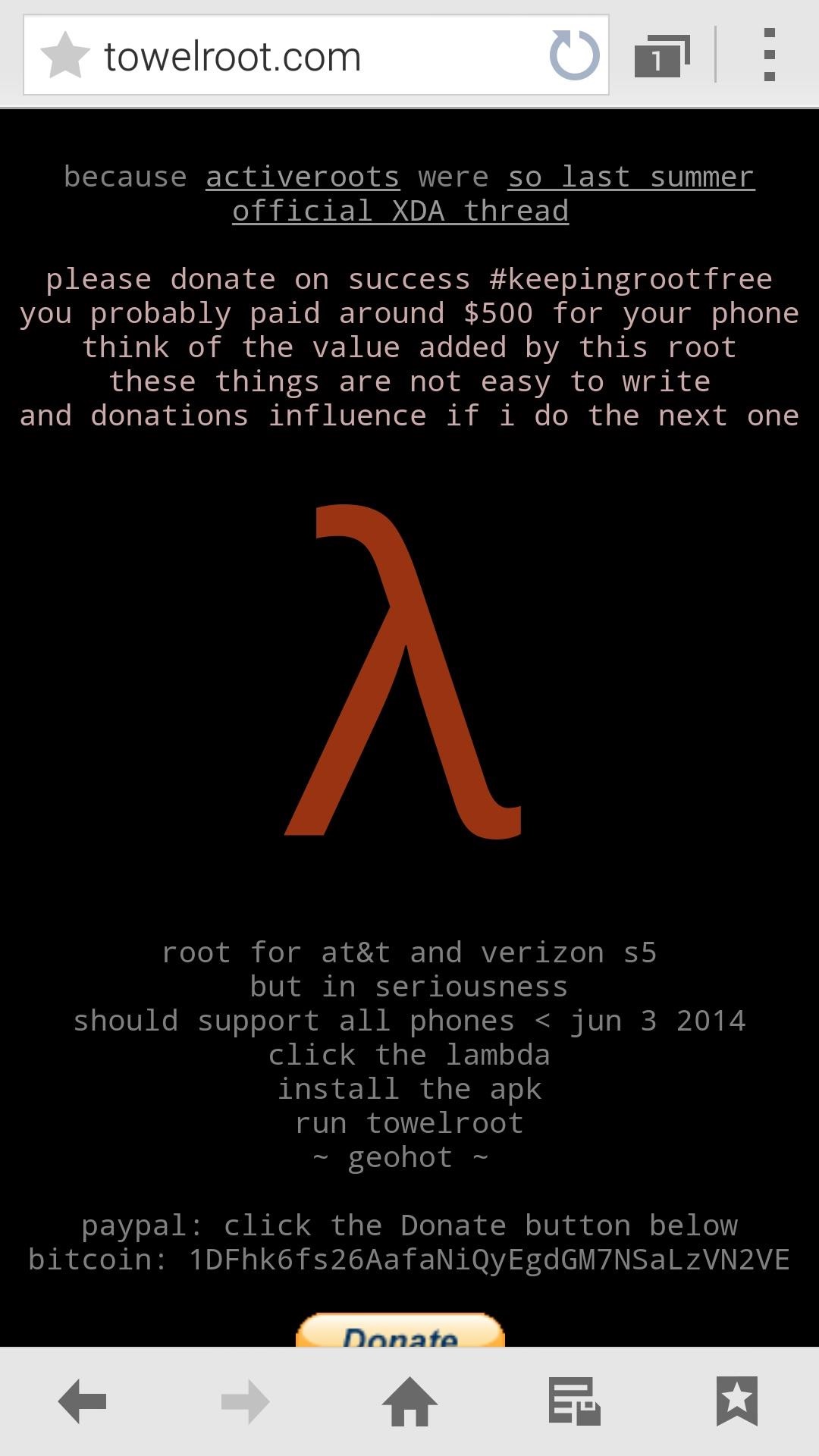
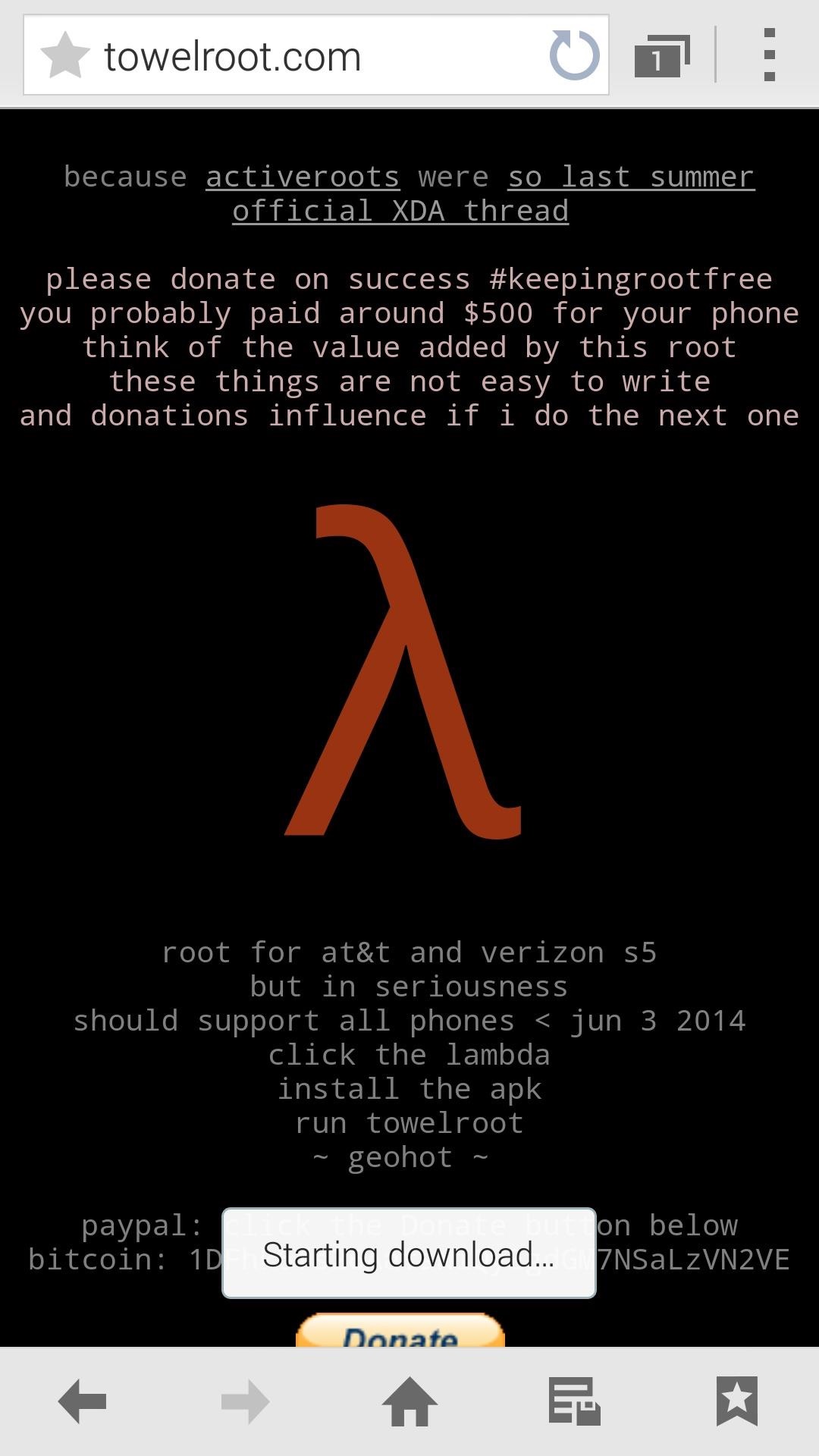
Hotz has made his root exploit app available to all through its website. Just open your Galaxy's web browser and navigate to towelroot.com. From here, tap the lambda symbol to download the installer file.


When the download is finished, tap the notification to initiate the install process. From here, hit Install, and when finished, tap Open.


Step 3: Root Your Device

When you open Towelroot, you'll notice that there's not very much to the app's UI. Just a single button that says make it ra1n.


Just tap this button and you're device will be rooted. That's it. Seriously.
Give the app about 15 seconds to perform Pinkie Pie's exploit and copy over the necessary files, and your phone will automatically reboot. When it comes back up, you'll be rooted. If you know you're way around an Android device, then all of the steps above shouldn't take longer than 20 seconds, though it will vary from device to device.


Step 4: Verify the Root Was Successful (Optional)

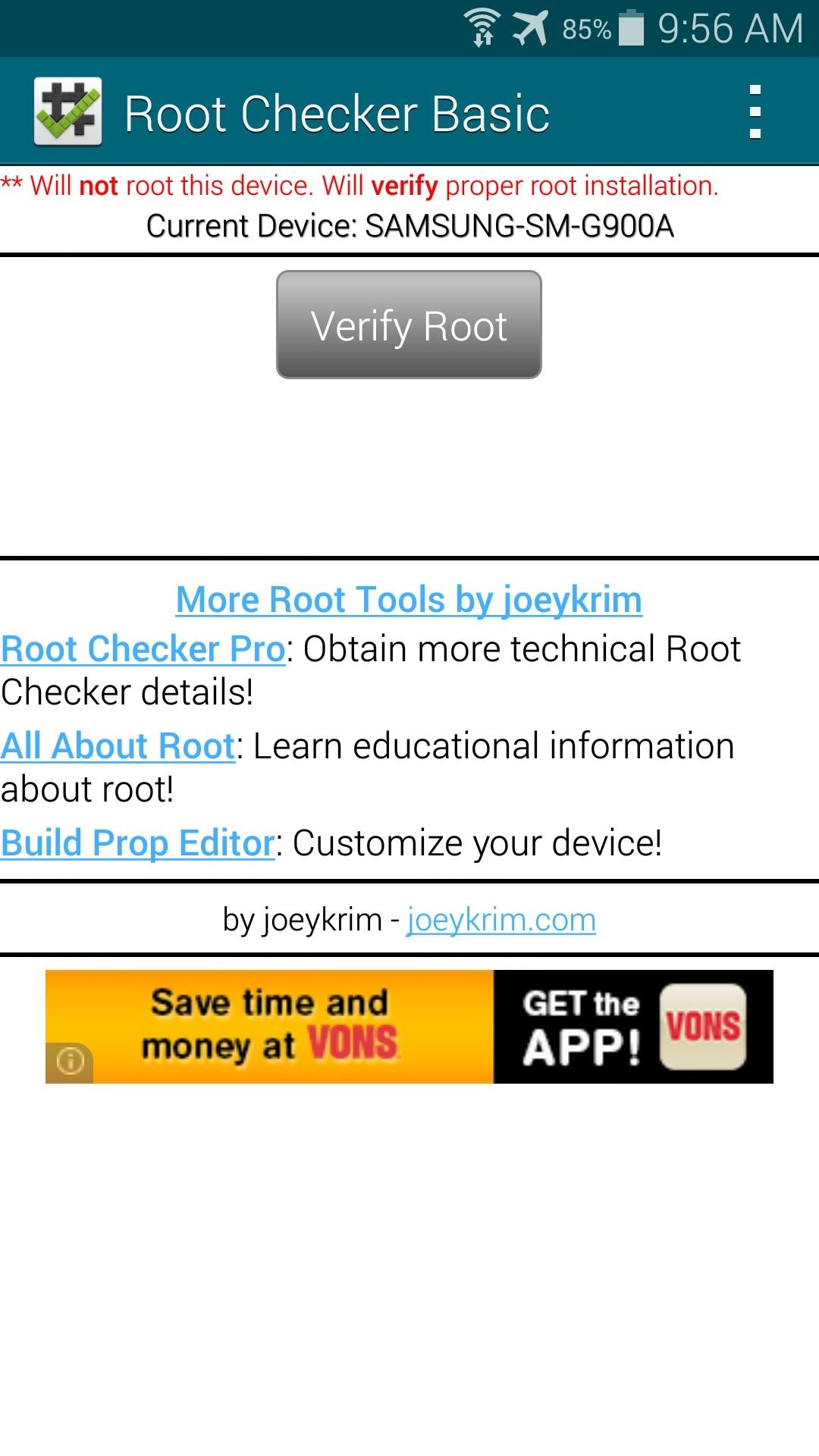
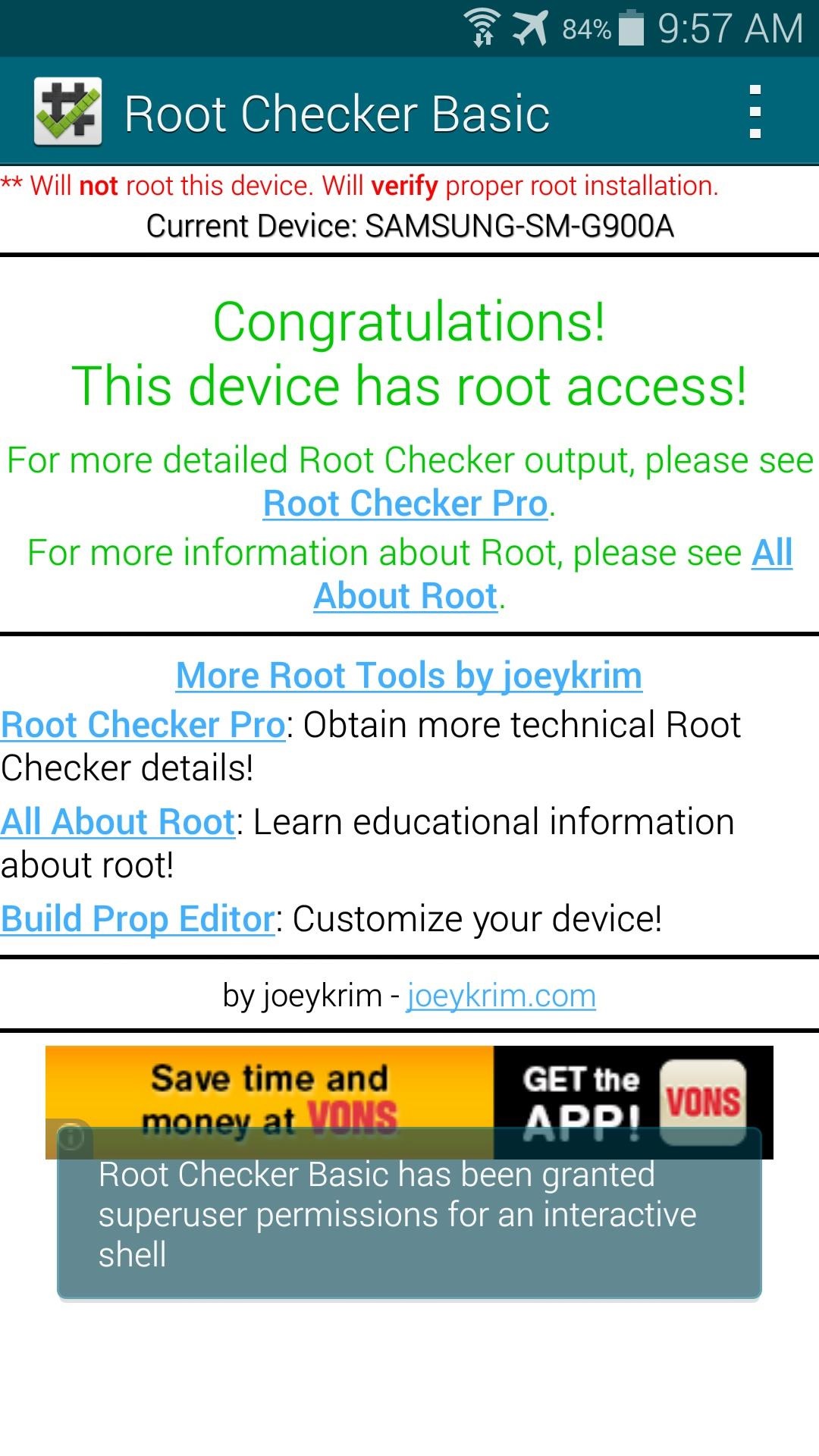
If you'd like to test out your new root privileges, you can download Root Checker from Google Play. With the app open, tap on Verify Root to confirm that the procedure went down without a hitch.


When you're doing that, though, you may notice that you weren't asked to grant Root Checker superuser permissions. This is because Towelroot doesn't install a root management app—it just gives root to any app that asks for it.
This is a serious security risk, because malware apps can do some significant damage to your phone with root permissions. An app that covertly installed itself on your phone could automatically receive root privileges without you ever knowing.

Step 5: Install a Root Management App (Recommended)

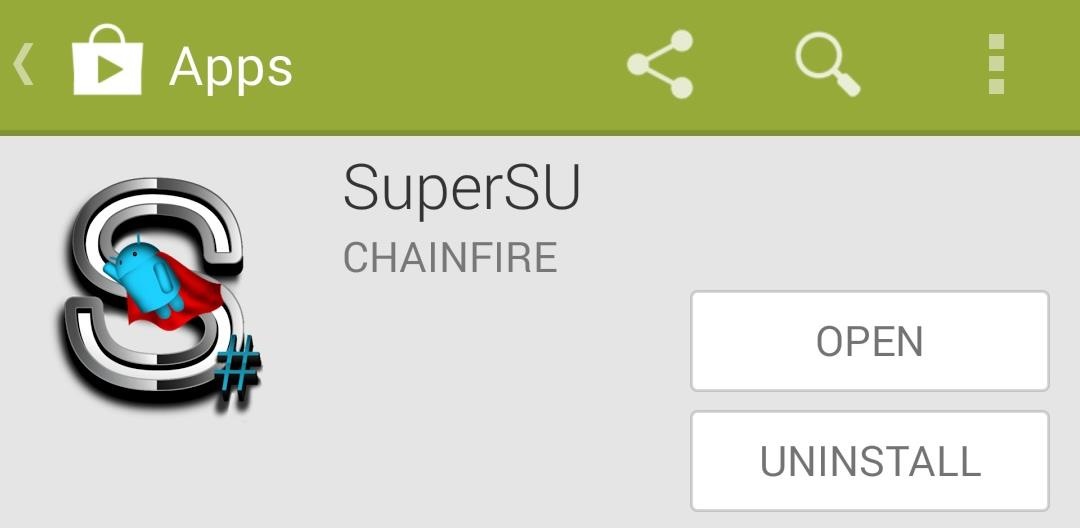
To remedy the above issue, simply install a root management app. Chainfire's SuperSU is the best app out there in this category, and it's available for free on Google Play. As I'm writing this, though, the current version hasn't been updated to work with the Verizon or AT&T variants of the Galaxy S5.


But Chainfire has updated the app to include support for the G900A and G900V models of the Galaxy S5, and I've uploaded that version for you to grab.
Using your Galaxy S5, tap this link to download the updated SuperSU. When the download is finished, tap the notification to launch the installer, then press Install and Open.


Step 6: Update the Superuser Binaries (Recommended)

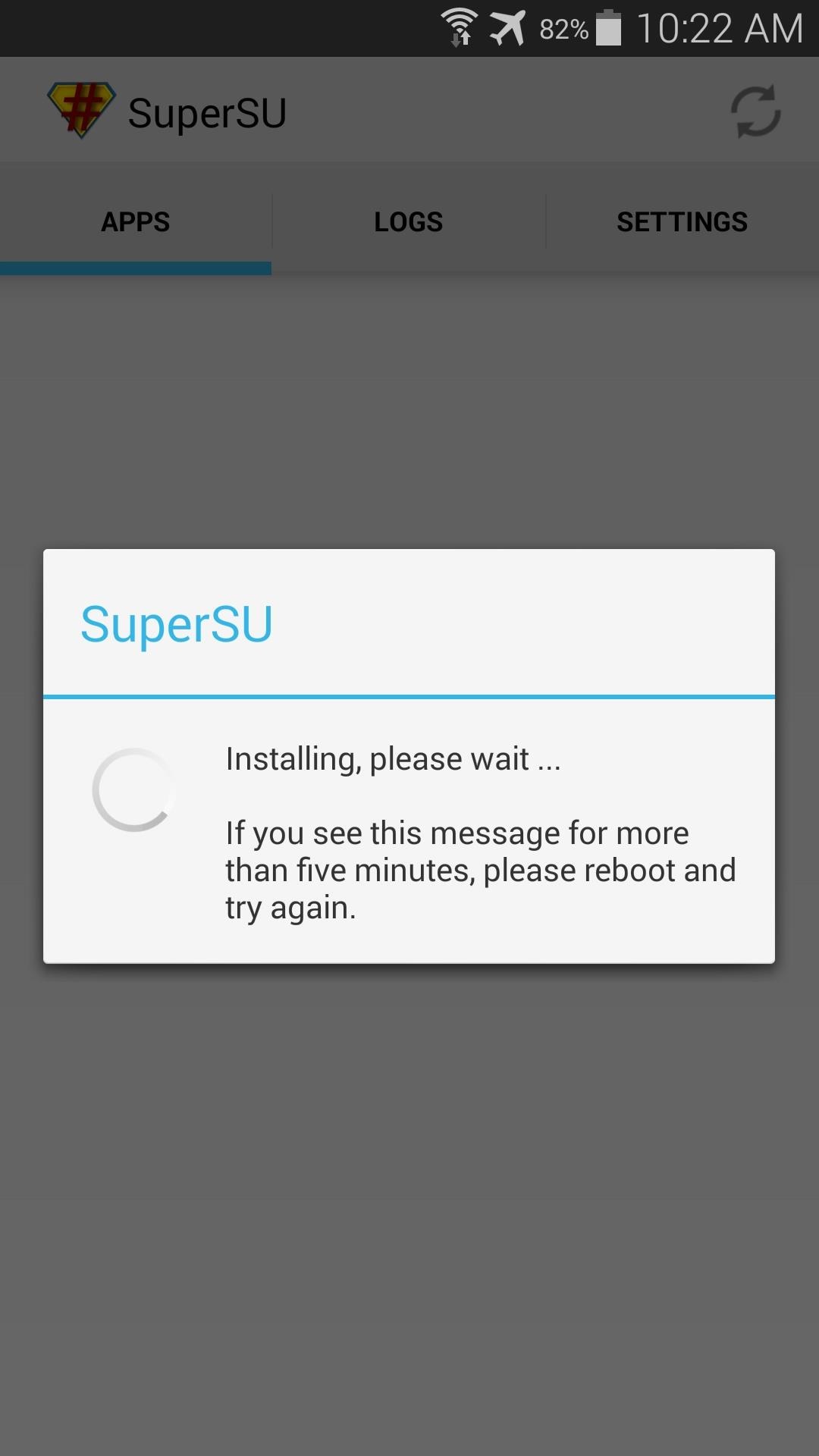
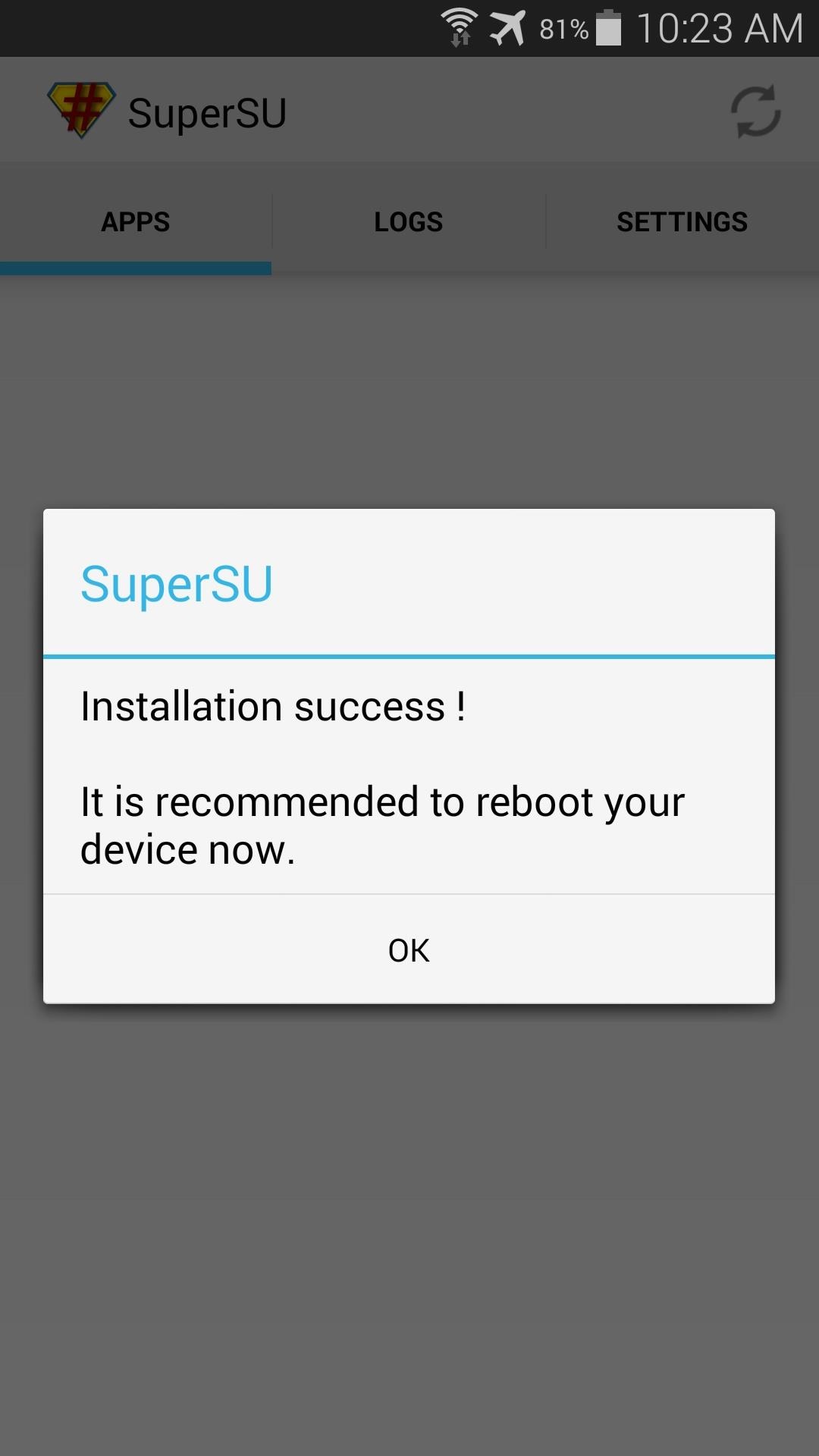
When you first launch SuperSU, you'll be asked to update the Superuser binaries. Just tap Continue to begin, then choose Normal as your method of installation.


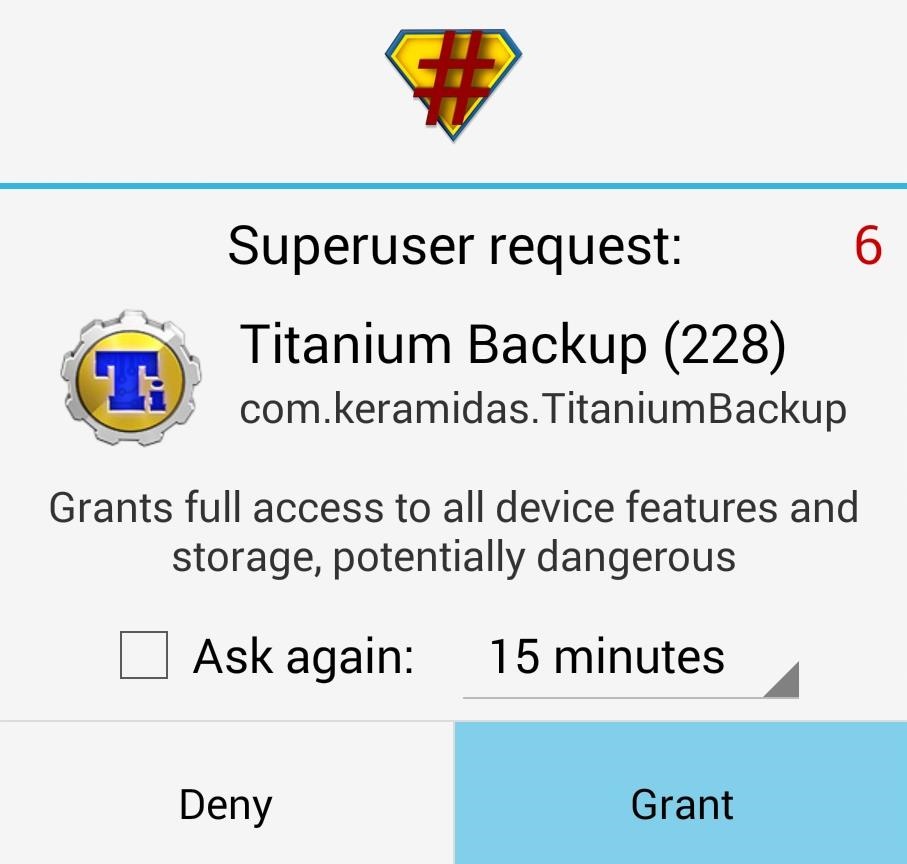
When you're back up, any root app will have to explicitly ask your permission to gain access to the system partition of your phone. Just press Grant for an app that you trust, and any suspicious apps can be denied root access by choosing Deny on the same dialog.


Step 7: Disable Security Policy Updates (AT&T Version Only)

As some users have noted, once rooted, AT&T's Security Policy Update service might ask you to update your Security Policies. This nagging notification apparently has the potential to unroot your phone, and we don't want that.
To prevent any issues with Security Policy Update, you'll just need to disable the app. Go ahead and grab one of the many free root-enabled file browsers from the Play Store to get the process underway. I'll be using Sliding Explorer to demonstrate, which is available on Google Play here.
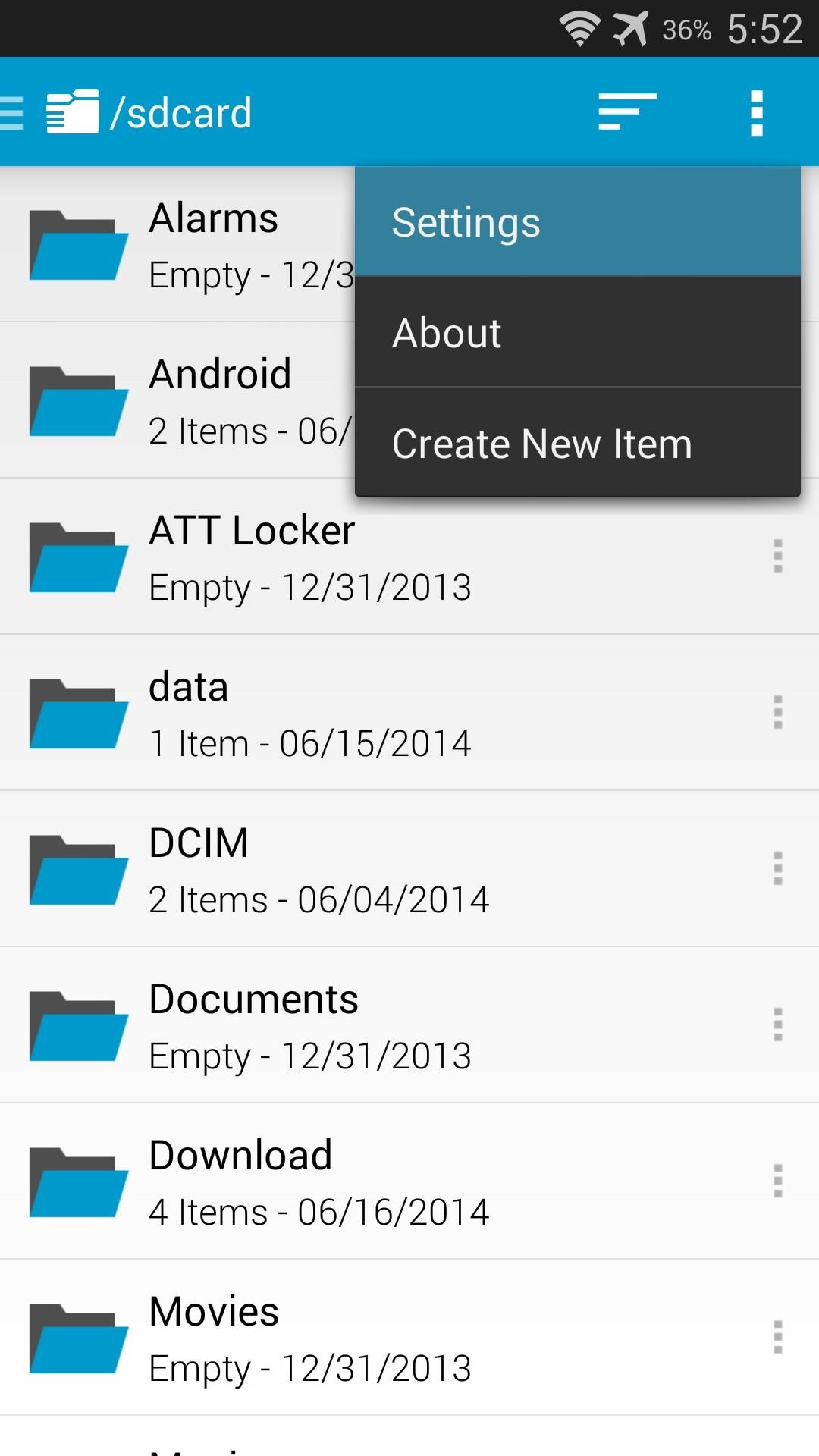
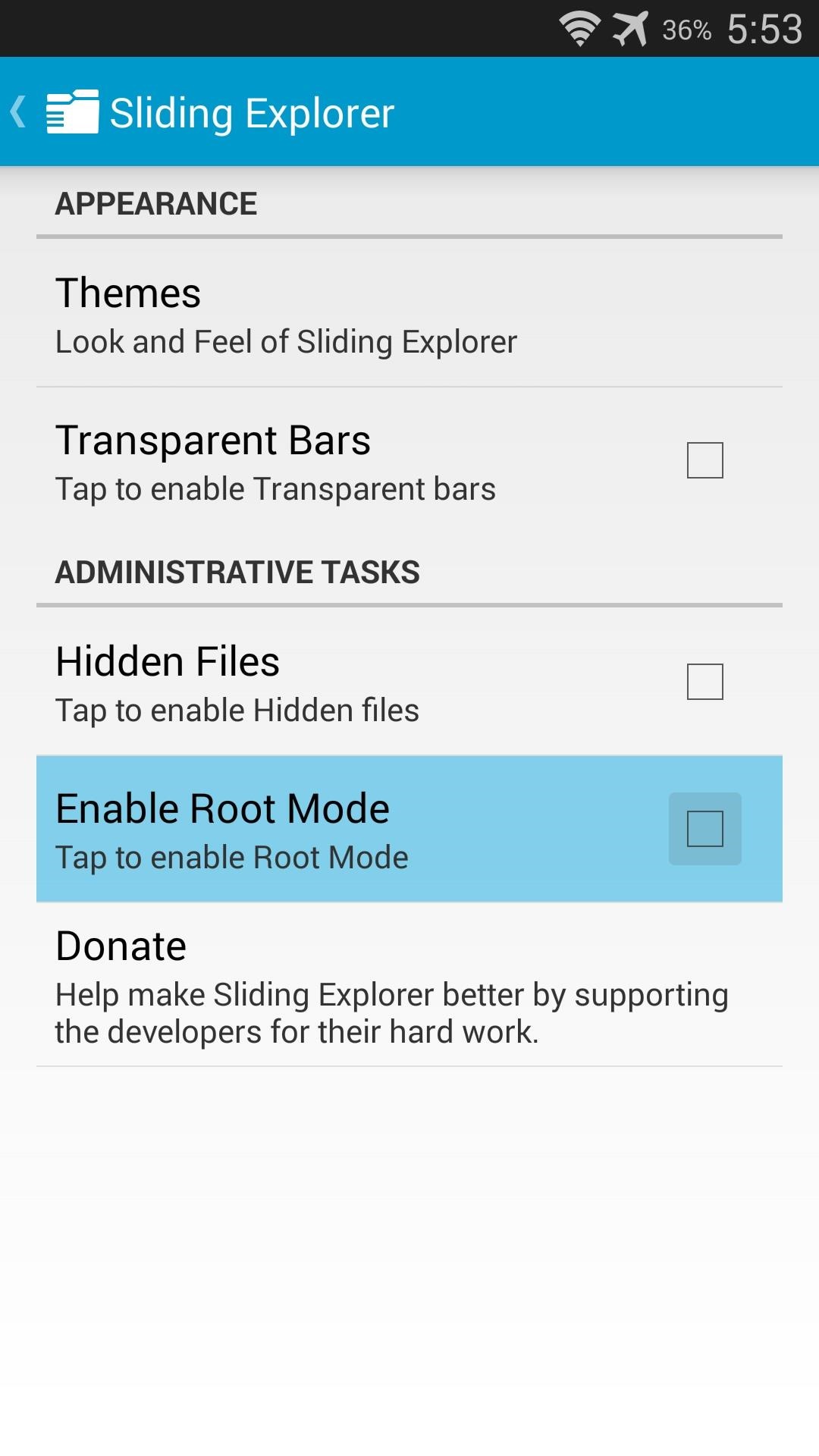
First, be sure to enable root mode on your file browser. With Sliding Explorer, hit the 3-dot menu button and tap Settings. From here, just tick the box next to Enable Root Mode.


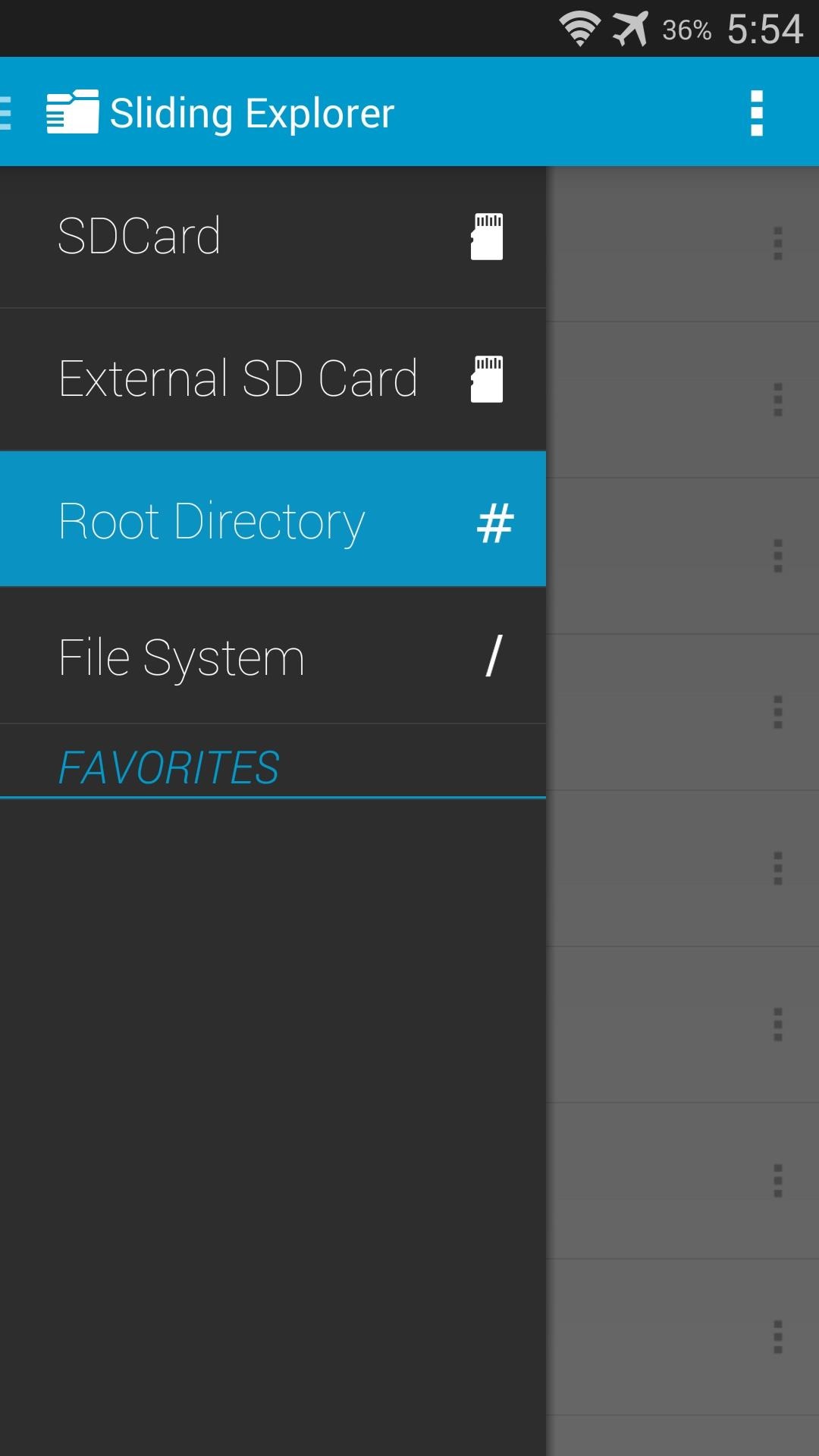
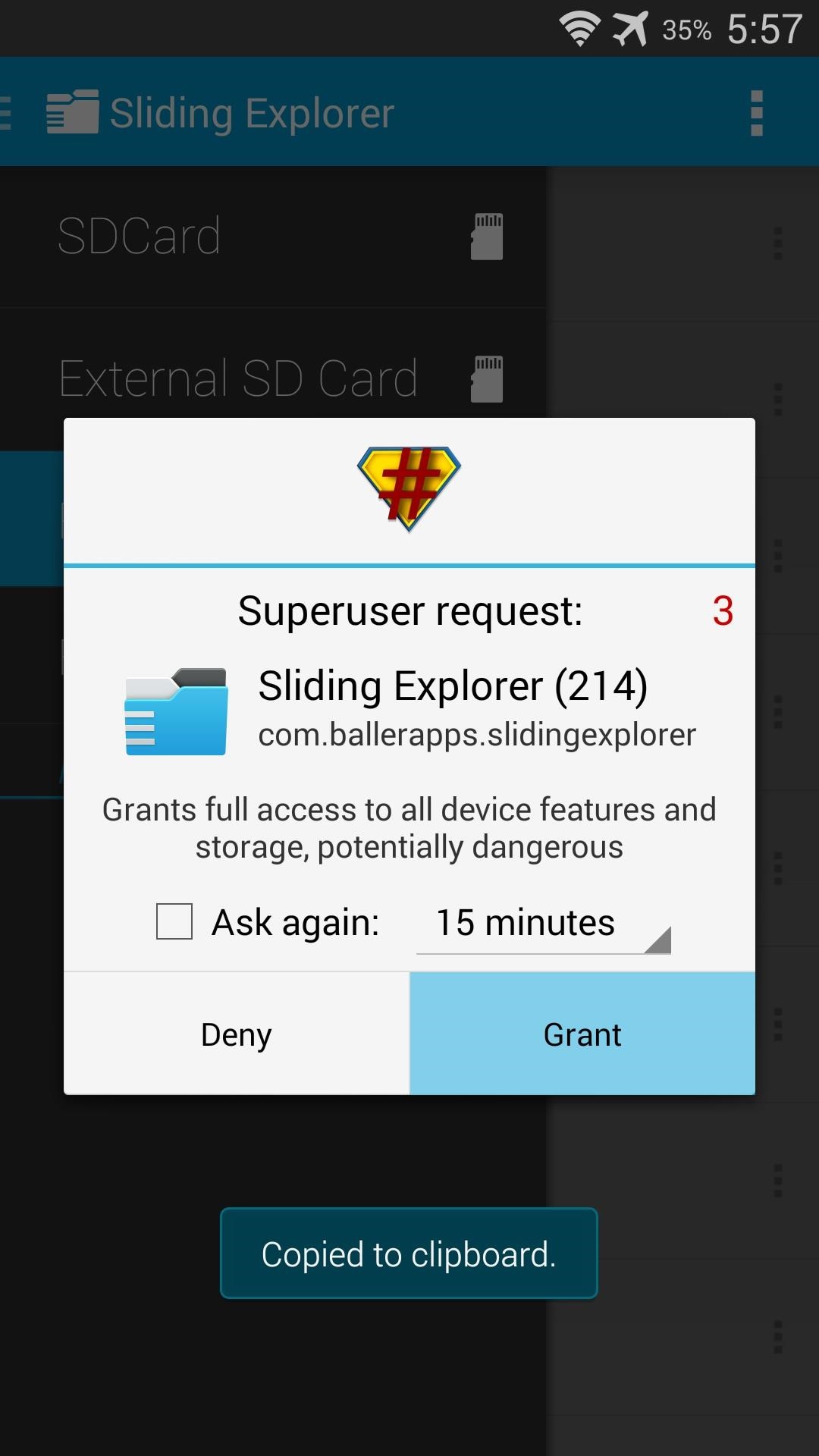
Next, use the navigation menu on the left to select Root Directory. SuperSU will pop up asking you to give Sliding Explorer root permission. Tap Grant on this prompt.


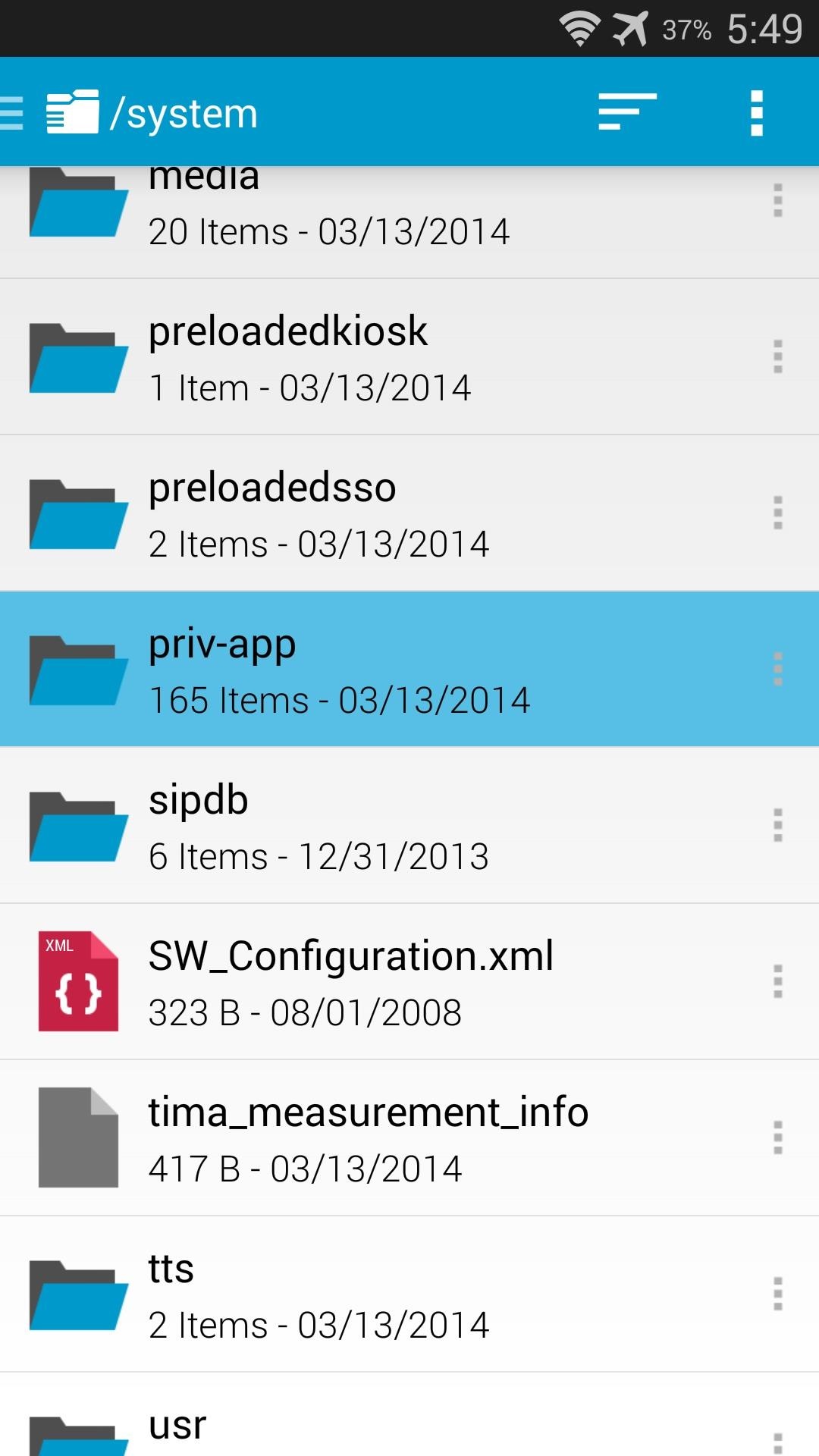
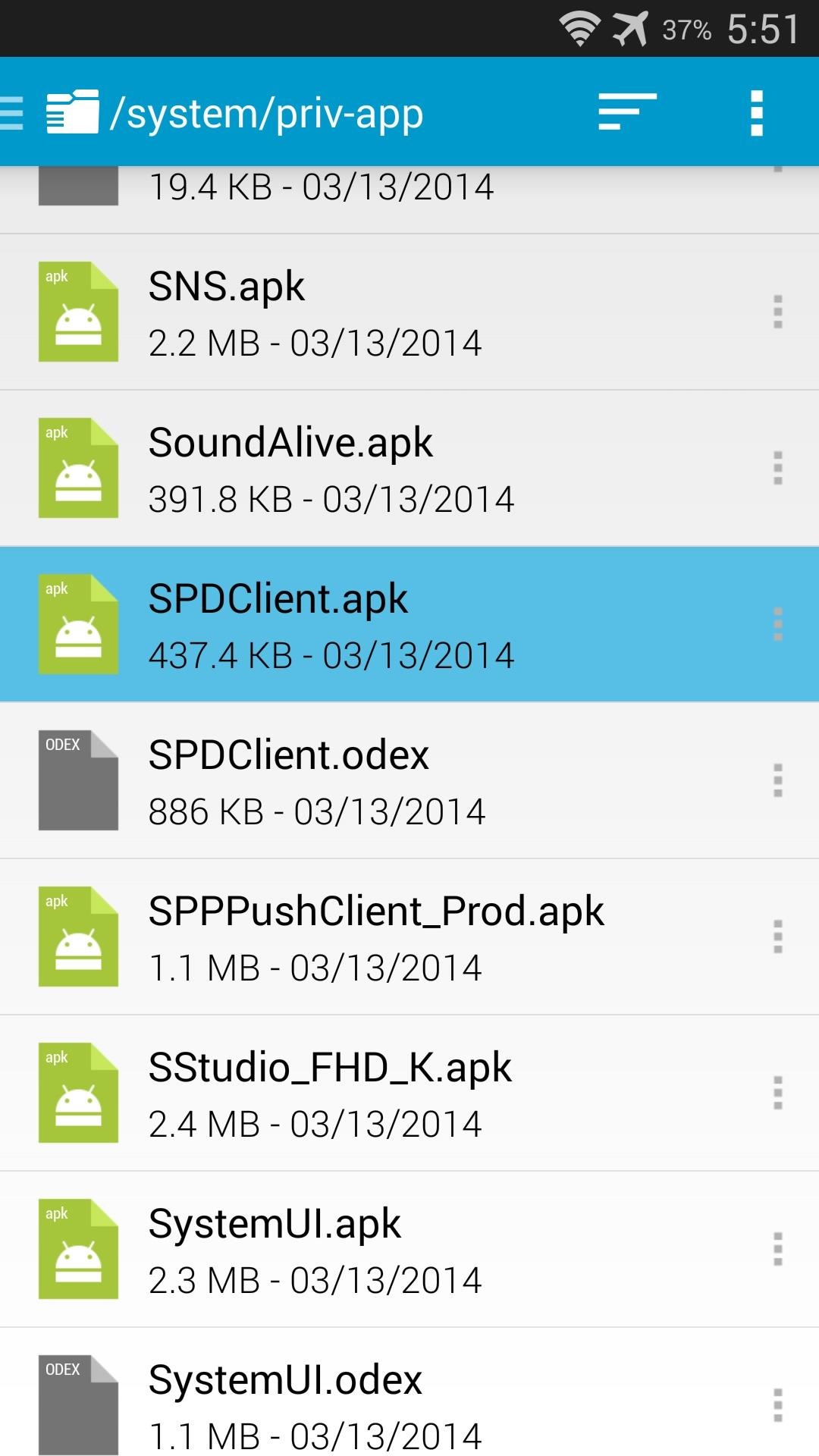
Next, navigate to the /system/priv-app folder and locate the SPDClient.apk file.


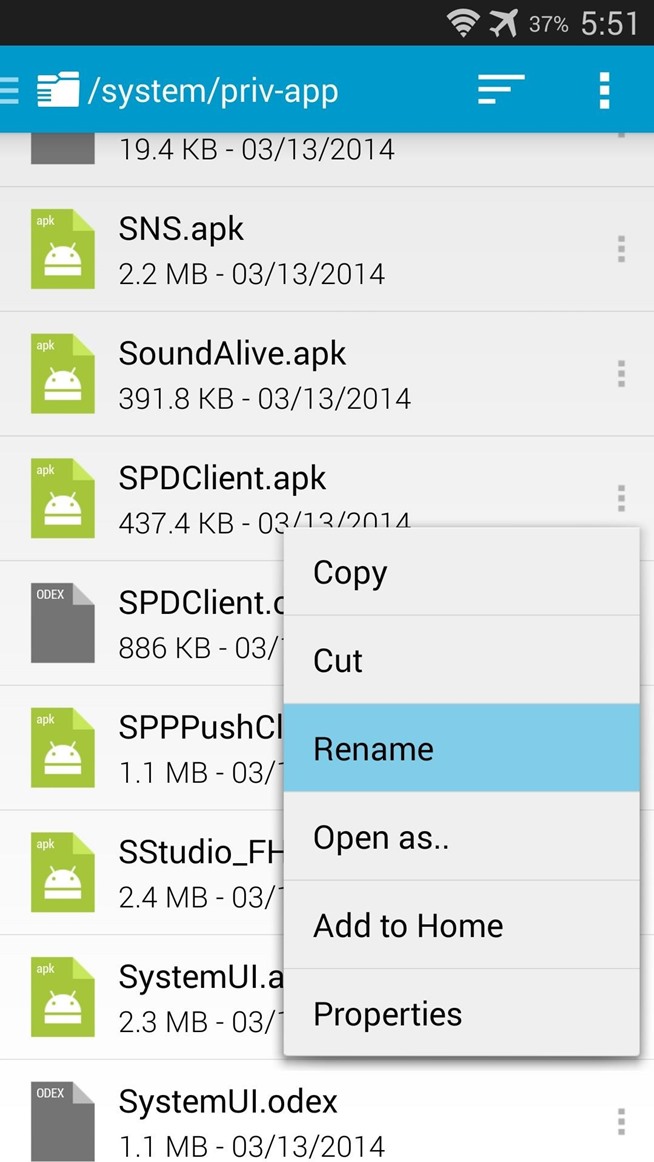
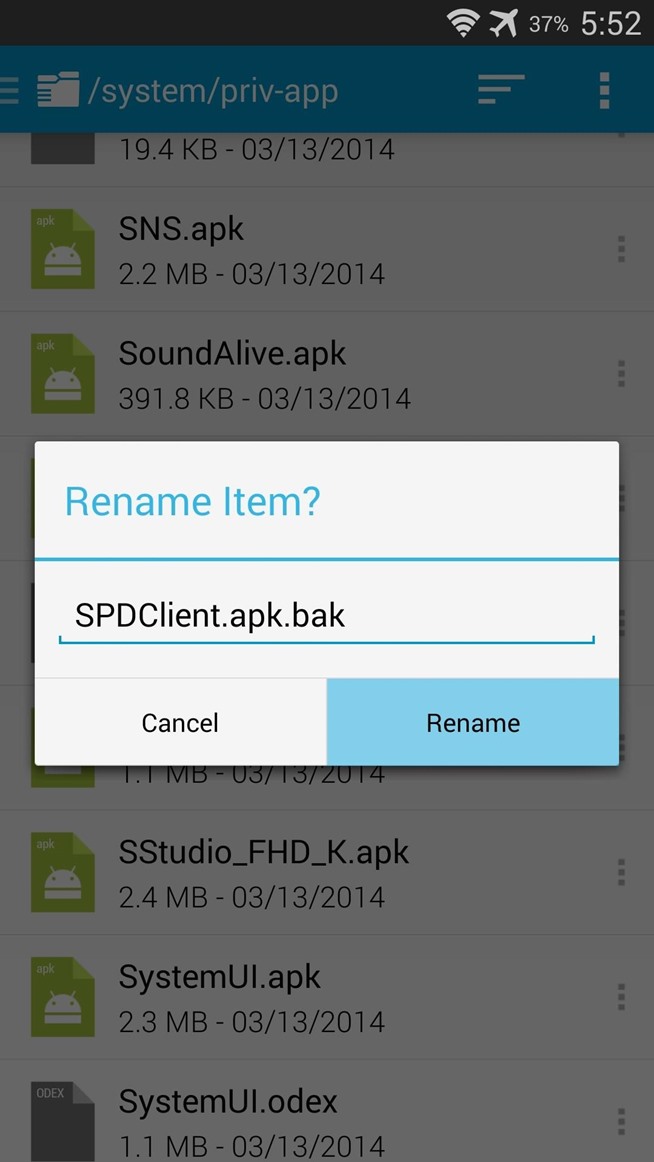
Tap the 3-dot menu button directly to the right of this file and select Rename. From here, simply append a .bak to the end of the filename and press Rename. Afterwards, just reboot your phone and you'll no longer have to worry about AT&T's Security Policy Update service.


And that's about all there is to it. Your Galaxy S5 should now be rooted, and it can handle root requests in a secure manner.
This is by far the easiest root procedure that I've ever performed. It literally took me less than a minute to get root, and just a couple more to install SuperSU. How long did it take you? Let us know in the comments section below.